Skip the Scroll: How to Add Anchor Links in Squarespace
Ever wish you could teleport your website visitors straight to the good stuff?
Maybe you want a "Contact Me" button that jumps immediately to your inquiry form, or a "See Pricing" link that skips the long scroll and lands right on your packages.
That magic trick is called an Anchor Link.
It’s a small feature that makes a massive difference in User Experience (UX). By letting people skip the scroll and get straight to what they need, you aren’t just being helpful - you’re increasing the chances they actually book you.
The best part? In Squarespace 7.1, you no longer need custom code to do it.
Why You Need Them
Better UX: No one likes endless scrolling.
Higher Conversions: Get eyes on your pricing and contact forms faster.
Professional Feel: It makes your site feel like a polished app rather than a static page.
How to Add Anchor Links (The Easy Way)
If you are on Squarespace 7.1, this feature is now built right in. Here is the 2-step process:
Step 1: Create the Destination
Enter Edit Mode on your page.
Hover over the section you want to link to (e.g., your Pricing section) and click Edit Section.
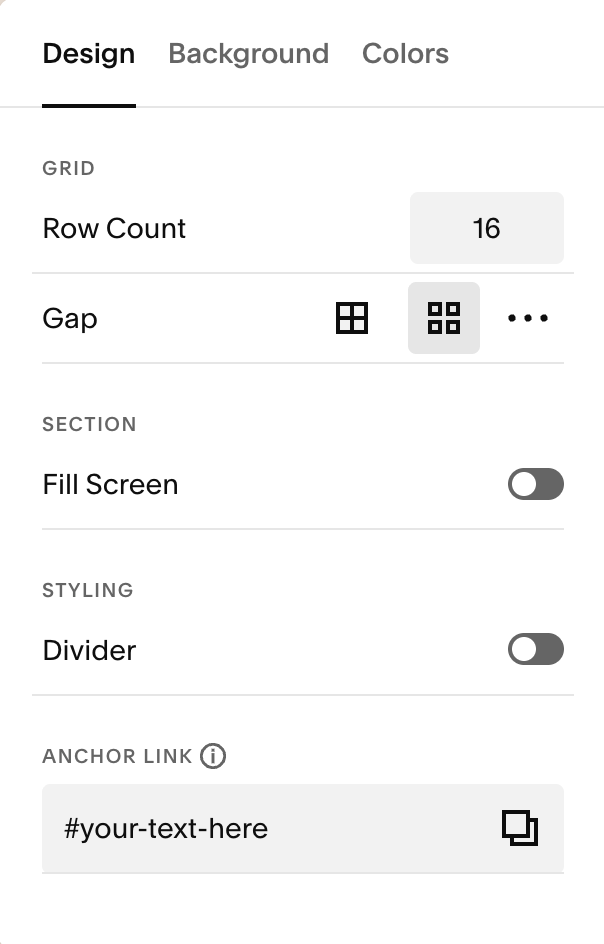
Click the Advanced tab.
Find the "Anchor ID" field.
Type a unique ID name here (e.g.,
pricing).Note: Keep it lowercase and use dashes instead of spaces.
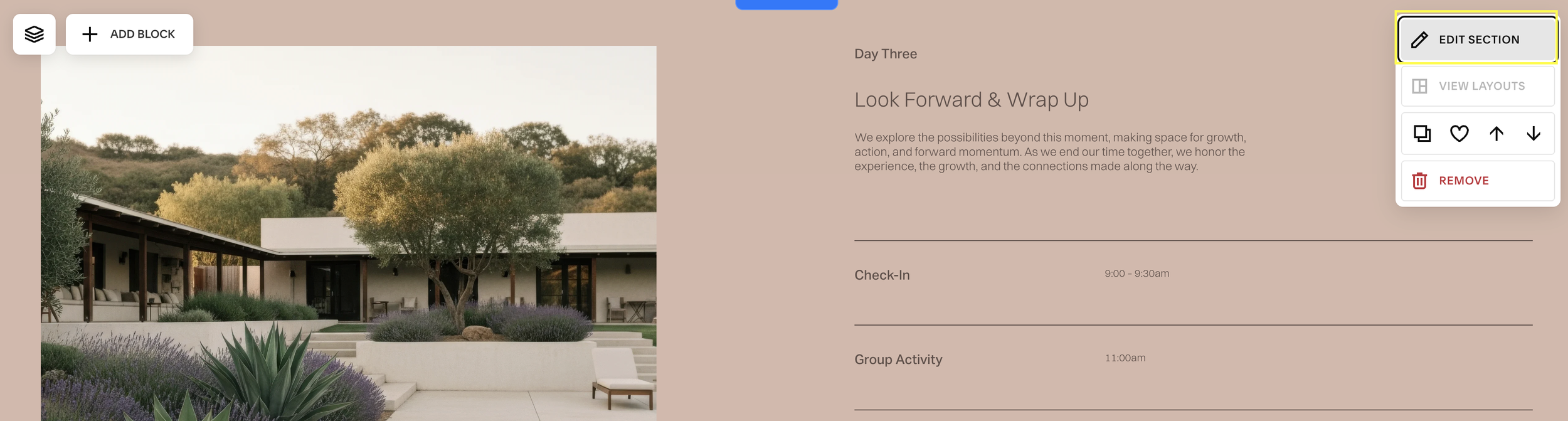
Step 2: Create the anchor link - let’s make the button or link that takes them there.
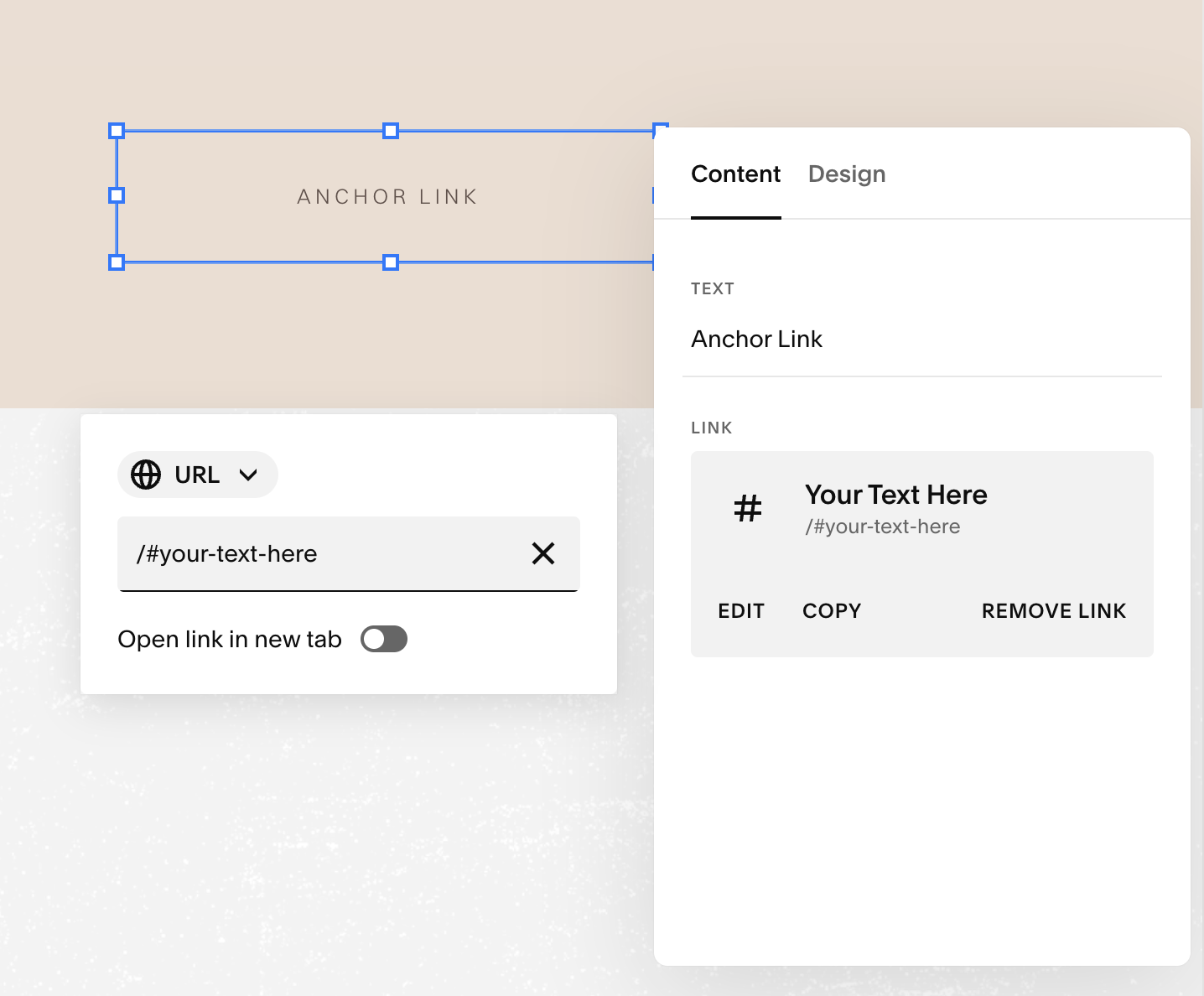
Click on the button or text you want to turn into a link.
In the URL field, type the hashtag symbol followed by your ID name.
Example:
#your-text-here
Hit enter, save your page, and test it out!
Still on Squarespace 7.0?
If you haven’t upgraded yet, you can still do this with a tiny bit of "copy-paste" code.
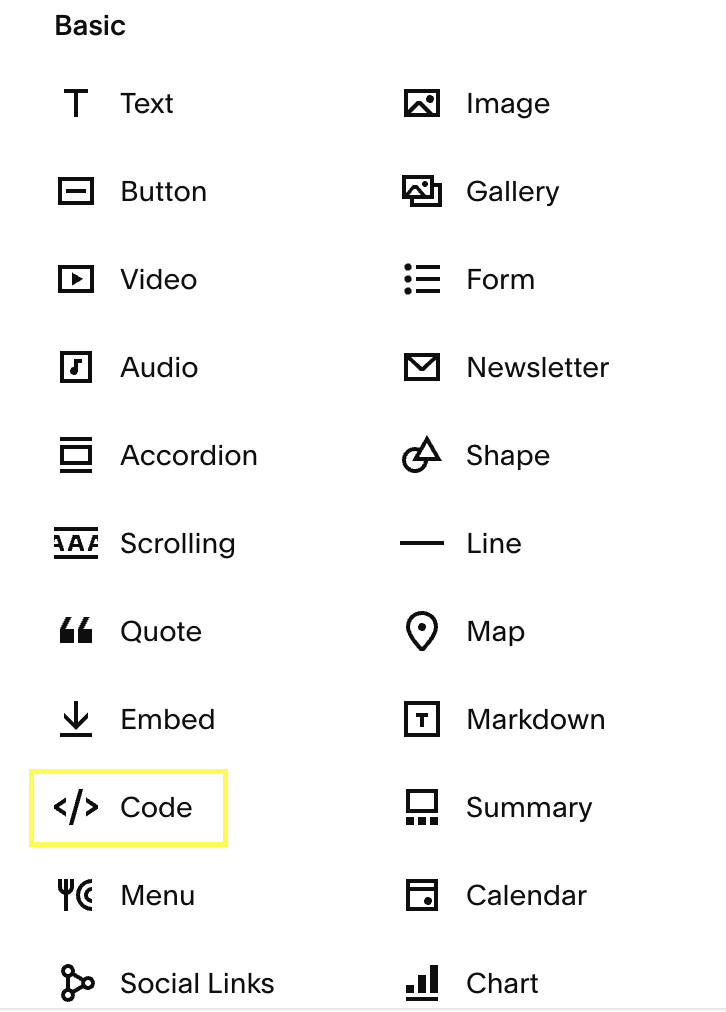
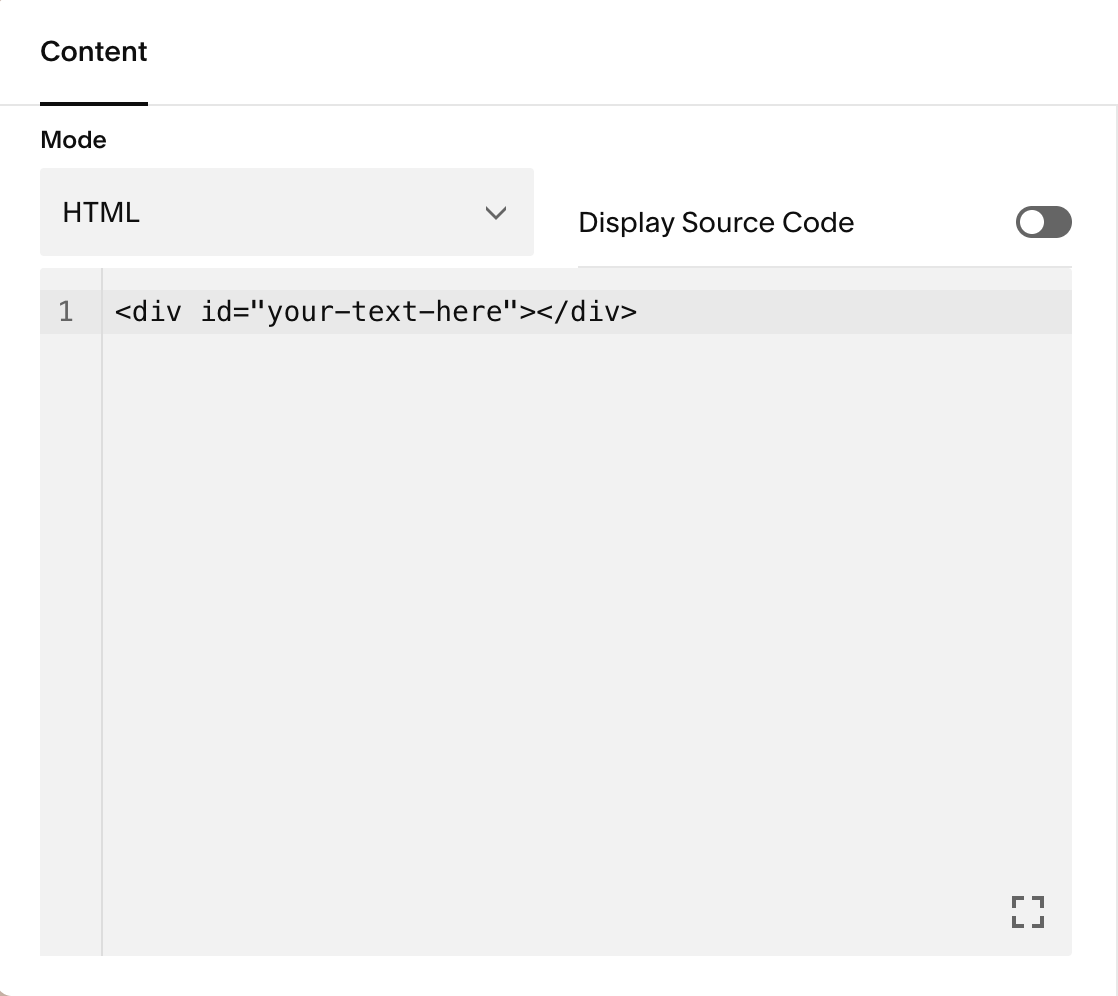
Add a Code Block exactly where you want the page to jump to.
Paste this inside:
<div id="your-text-here"></div>Create your button link using
#your-text-herejust like the steps above.
3 Ways to Use This Today
Not sure where to use them? Try these high-impact spots:
"Jump to Pricing" button at the top of your Sales Page.
"Back to Top" link in your footer.
"FAQ" Table of Contents that links to specific answers.
Want your whole site to flow this smoothly?
If your current website feels clunky or difficult to navigate, it might be time for a strategy overhaul.
Check out my Custom Design Services—we build sites that don’t just look good, they work.