How to Create a Free Link-in-Bio Page on Squarespace
Let me guess: You’ve got a Linktree link in your Instagram bio.
It’s easy, it’s popular, and it gets the job done. But if we are being honest?
It’s kind of a vibe killer. You spend all this time building a beautiful brand and website, only to send your followers to a generic, third-party list of links that looks just like everyone else’s.
If you have a Squarespace site, you can build a custom, on-brand link page in less than 10 minutes - for free. No monthly subscription, no "Linktree" logo at the bottom, and best of all, you keep all that traffic on your website (hello, SEO boost!).
Why You Should Ditch Linktree
Before we get to the "how," let’s talk about the "why."
Brand Consistency: When someone clicks your link, they should land on your brand, not Linktree’s neon green logo.
SEO Magic: Every time someone clicks your Linktree, Linktree gets the traffic. When they click your custom page, Google sees that activity on your domain. That helps your search rankings.
It’s Free: Linktree Pro costs money. Your Squarespace page is already included in what you pay.
How to Build Your Link-in-Bio Page (Step-by-Step)
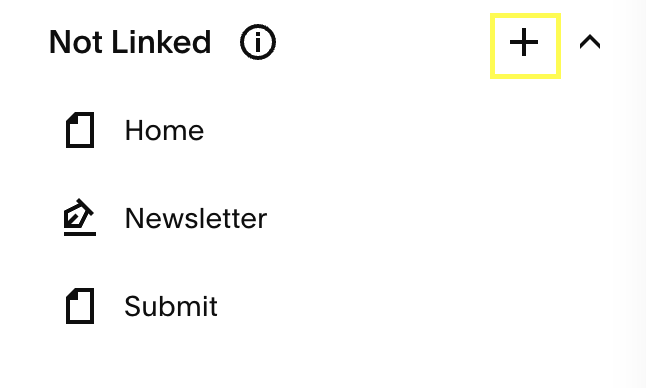
Step 1: Create a "Not Linked" Page Go to your Squarespace dashboard > Pages.
Scroll down to the Not Linked section and click the (+) to add a Blank Page. Name it something clear like "Links" or "Social."
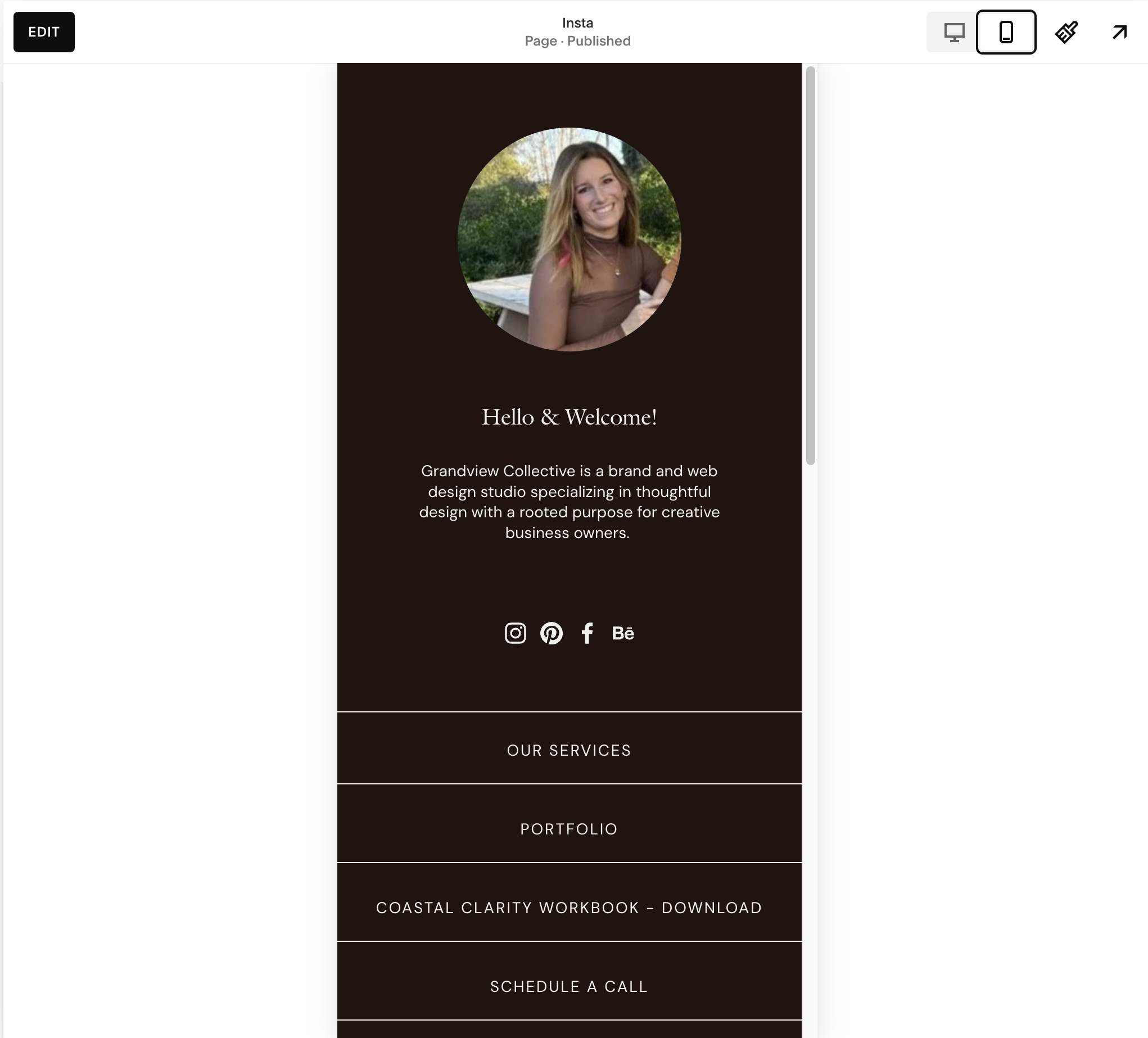
Step 2: Design the Layout Treat this page like a mini-landing page. Keep it simple and mobile-friendly (since 99% of people will see this on their phone).
Add your Logo or Headshot: Make sure they know they’re in the right place.
Add Buttons: Create a stack of buttons for your top links (Services, Blog, Freebie, Contact).
Style it: Use your brand fonts and colors. This is the fun part!
PRO TIP: Make sure to review it on mobile (since that’s how it will be seen) to make sure spacing and layout is how you want it.
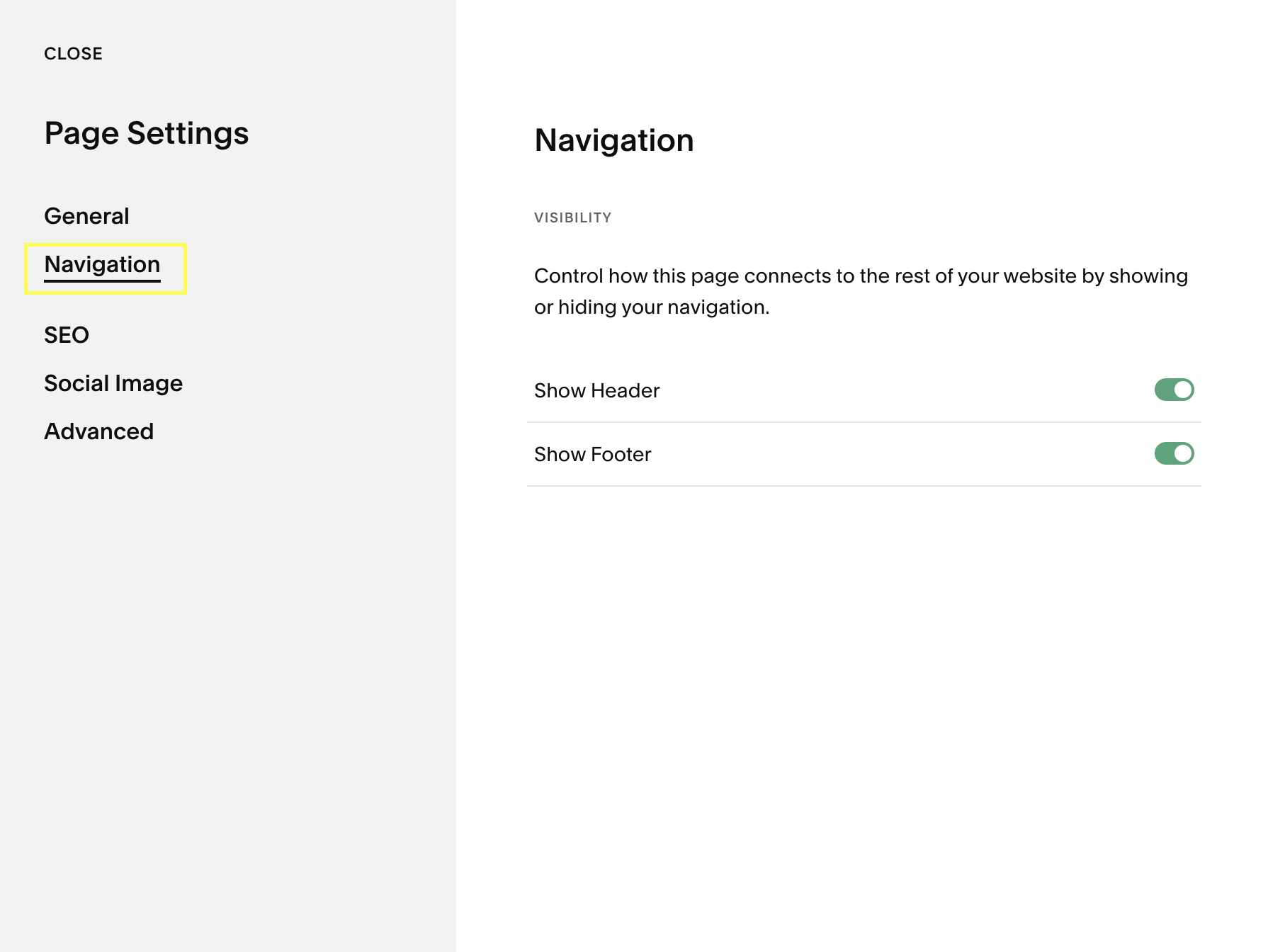
Step 3: Hide the Header & Footer (Optional but Recommended) To make this look like a true app-style landing page, you want to remove the distraction of your main navigation.
Squarespace 7.1: Click the Gear Icon next to your page name > Navigation > Toggle "Show Header" and "Show Footer" to OFF.
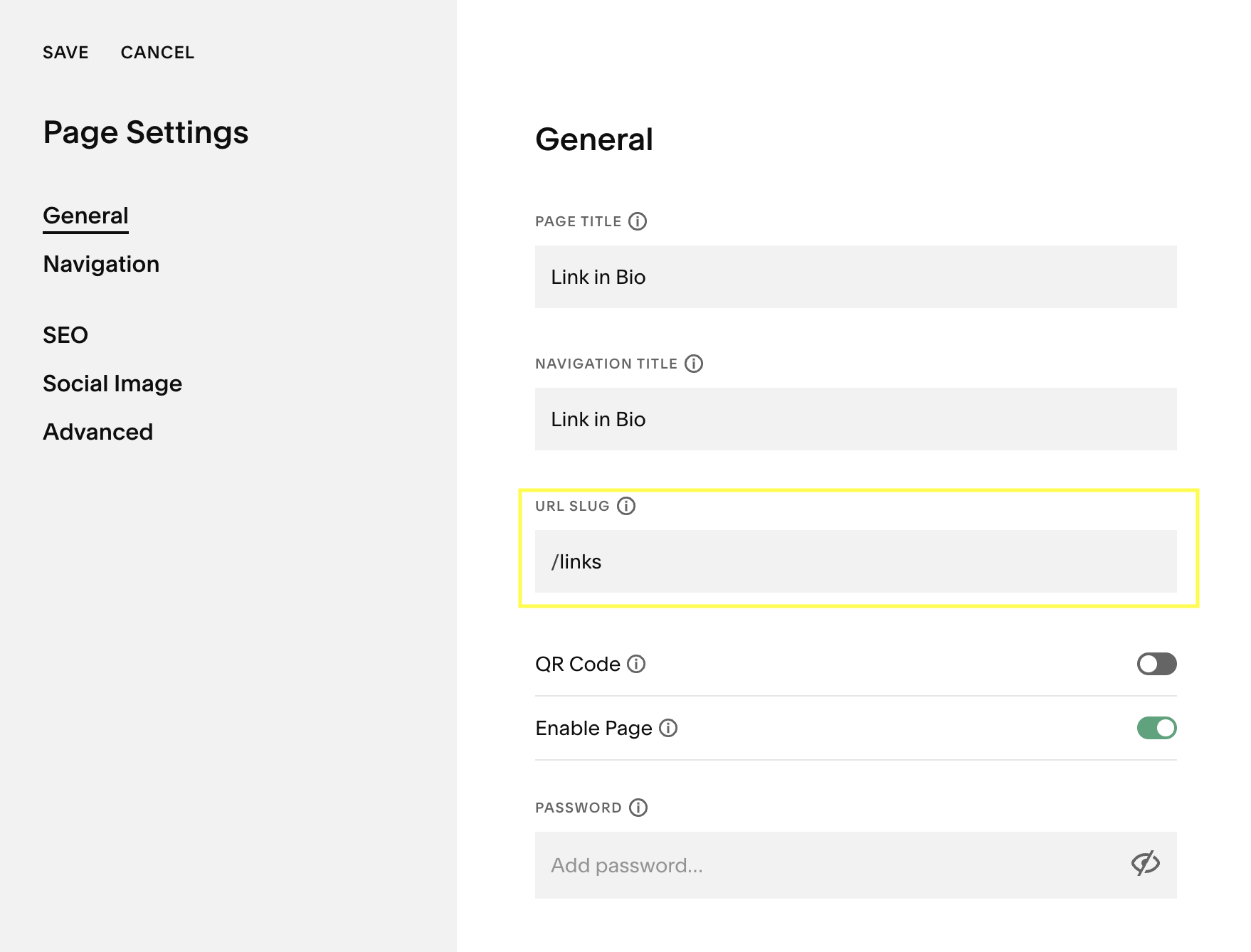
Step 4: Set Your URL Go to Page Settings > General. Change the URL Slug to something short like /links or /bio. Your final link will look like: www.yourwebsite.com/links
Step 5: Copy & Paste to Instagram Grab that new URL, head to your Instagram profile, and swap out that Linktree link.
The Bottom Line
Your brand deserves better than basic. By moving your links to your own site, you aren’t just looking more professional - you’re taking ownership of your traffic and your customer experience. And that is always a good business move.